Free automated testing tool for web scraping, selenium automation, and data parsing — with 650+ configs
OpenBullet Anomaly is a powerful automated testing tool and web scraping suite that allows you to perform requests towards a target webapp and offers a lot of tools to work with the results. This software can be used for scraping and parsing data, automated pentesting, unit testing through selenium automation and much more. Download OpenBullet and SilverBullet configs for free from our store.
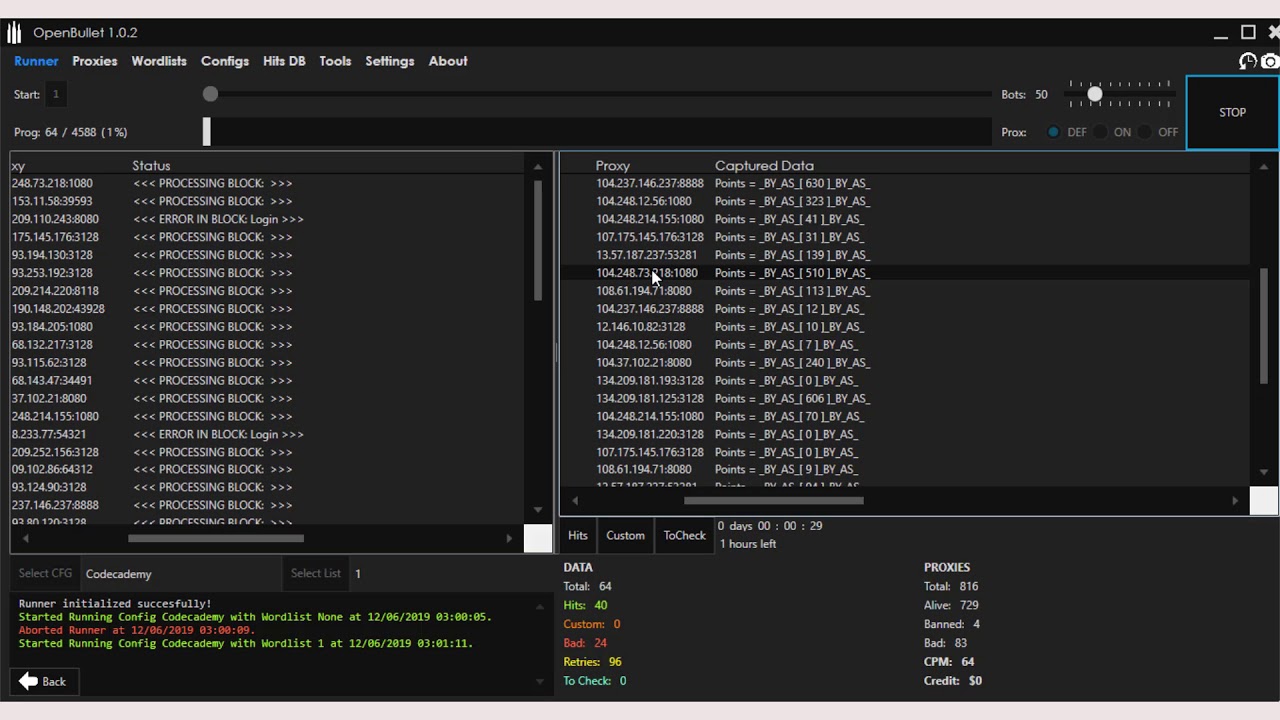
Powerful features designed for professionals
High-performance testing with optimized threading and proxy support for maximum speed.
Access to a vast library of pre-made configs for popular websites and services.
No ads, no tracking. Your testing activities remain completely private.
Download the latest updated version with 650+ configs included.
Password: openbullet.store Download rev docx
Download .RAR FileComplete cracking course with tools, audio explanation, video and text tutorials. : Sign in to your Rev account and
Advanced course for OpenBullet Anomaly & OpenBullet 2 [2026] with comprehensive materials. Download rev docx
: Sign in to your Rev account and navigate to your My Files dashboard.
: Rev’s .docx export maintains a clean layout with clear speaker distinctions, making it ready for immediate use in reports or articles.
: In the pop-up menu, choose Microsoft Word (.docx) from the list of available file formats.
: Click on the name of the completed transcript or caption file you wish to download.
: Locate the Download or Export button, usually found in the top right corner of the Rev Customer Editor.
: Sign in to your Rev account and navigate to your My Files dashboard.
: Rev’s .docx export maintains a clean layout with clear speaker distinctions, making it ready for immediate use in reports or articles.
: In the pop-up menu, choose Microsoft Word (.docx) from the list of available file formats.
: Click on the name of the completed transcript or caption file you wish to download.
: Locate the Download or Export button, usually found in the top right corner of the Rev Customer Editor.